Showing posts with label windows. Show all posts

Sunday, November 25, 2012

How to show Hidden files and folders in Windows

How to show Hidden files and folders in Windows 7. Method also works in Windows XP and Vista.

Method 1

Show hidden files and folders using Folder Options.

  1. Click on Start Button. Type "Folder options" and open it. Or you can open windows explorer and click on organize (top left) and click folder options.
  2. A folder options window opens.
  3. Click on the view tab.
  4. Change from "Don't show hidden files" to "Show hidden files".
  5. Click on Apply and OK.


Method 2

Show hidden files and folders using Registry editor.

  1. Open registry editor by clicking Start Button and type "regedit".
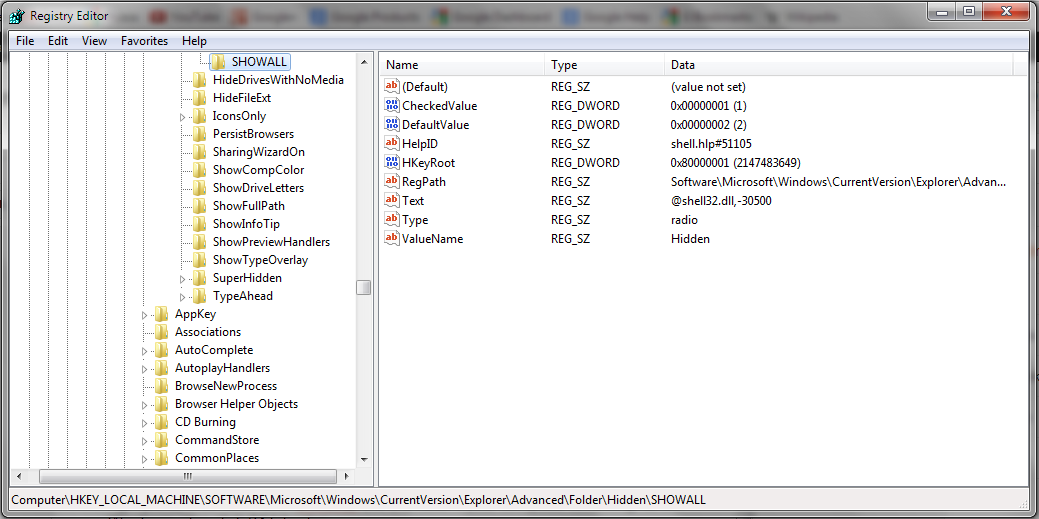
  2. Locate the following registry:Computer\HKEY_LOCAL_MACHINE\Software\Microsoft\Windows\CurrentVersion\Explorer\Advanced\Folder\Hidden\SHOWALL
  3. Click SHOWALL folder in the left pane and check if item CheckedValue is present in the right pane and if the value set to it is 1.
  4. If CheckedValue item is missing in the right pane, then right click in the blank area on the right pane, click New -click DWORD (32 bit) value if your computer is running 32 bit Windows, else click 64 bit value.
  5. Name the item you created as CheckedValue.
  6. Double click on CheckedValue item and type 1 in the value data box and then click ok.
  7. Close the registry editor and restart the computer.
  8. Enable hidden files and folders to see if it works.
[Click to view full size]

Saturday, November 17, 2012

How to recover data from a crashed Windows system


[This article was also posted on our sister website: Tech Authority]

How to recover your data from a crashed Windows 7 computer? (Will work on vista and XP too) 

An easy way to recover data is to install another Operating system so that it can help you to access your hard drive. We'll choose Linux as it is free. 
To install linux on your computer, you'll need a linux distribution (distro). 99% of them are free. Search for list of linux distributions on Wikipedia. You'll find a list of lot of linux based operating systems. livecdlist.com can also help. 
I'll recommend ubuntu, tiny linux, knoppix, fedora, debian, xubuntu, px linux os etc. Download any of 'em and make a bootable usb. Bootable usb can be made using unetbootin, universal usb installer etc. (search for live cd maker). Install this and make a bootable pen-drive (I recommend 4gb). 
Now turn off your computer and restart. As it starts, u'll see boot options (F12 or something else). Press it and u'll see a black window showing boot options. Choose your pen drive to boot and then hit enter. After booting u'll see a menu provided by that linux distro. choose live cd or try.
Then you'll see ur new OS which is running from ur usb. Now u can access ur hard drive. Connect an external/portable hard drive and then copy all of the data. After it, shut down ur computer; all of the data has been backed up. Now go on and format ur hard drive by using windows 7 (or other Windows) installer DVD/ USB.


Saturday, November 10, 2012

How to customize Windows Start Menu


Are you got bored with the traditional Windows Start Menu? Well, here's a way to customize it.

The shareware tool Start Menu 7 offers a good alternative to the standard start menu; this can be downloaded from startmenu7.com.

According to the developers, Start Menu 7 runs on both XP and Vista in addition to Windows 7 as its name suggests. For installation, double-click on the downloaded file in Windows Explorer and follow the instructions given by the setup wizard.

You must have a user account with administrator rights during the process as the setup routine involves accessing important system files. Once the installation is complete start the Program using the command ‘Start> All programs> Start Menu 7> Start Menu 7’. Now, when you click on ‘Start’ you will not see the usual start menu provided by Windows, but instead, a menu that has an extensive collection of links: It has a different visual effect and enables direct access to all the programs and files on your system in an alphabetically sorted sub-menu format, for instance ‘Programs’, ‘My Documents’ or ‘Computer’. In addition to this, the various entries use additional sorting and display tools.


Thus, for instance ‘Program’ offers the structure known as ‘All programs’ as seen in the usual Windows Start menu and on the other hand, the ‘Program’ links can be found under headings such as ‘Quick start’ and ‘Autorun’. 

You can add your own menus and commands using the option ‘Add entries to the menu’. Click on ‘Options’ and ‘Configuration’ so as to complete the experience as per your own taste. Use the option ‘System integration’ and remove the tick in front of ‘Start the Start Menu 7 with Windows’ if you do not wish to activate the tool automatically at every system start. 

You can add more power management buttons in Start Menu 7 using the option ‘Buttons’; this is done to turn off the computer, to restart it, or to enable the use of power management commands in a time-controlled fashion. For this, click on the corresponding button in the Start menu, select the desired function in a menu, for instance ‘Turn off the computer’, and define the period for action in a simple and an intuitive dialog. Finally, click the ‘Start’ button to save the settings.